Agentic test automation with Step Studio (UI)
Delegate the whole testing journey to Step AI Agent: write your test cases in plain language in Step Studio, and collect a validated Automation Package you can schedule and share.
Get Step SaaS for free to follow this tutorial
This tutorial shows how to create automated test cases in Step Studio from plain-text specifications. The Step AI Agent explores the application, designs and implements the automation, runs it, and repairs what fails before handing back a Step Automation Package. You write no code and no selectors, and what you get is validated rather than merely generated.
Scenario
A guest checkout on our own instance of OpenCart, from the specification a tester or business user would write to a journey running on a schedule.
Prerequisites
- The Step AI Agent and Step Studio installed: see Getting started
- An Anthropic API key, exported before Studio starts
- Network access to the storefront under test
Phase 1: Write the test case
It starts from one line: a visitor who is not registered can buy a product and receive an order confirmation.
The test summarizes in one line. We make steps explicit:
OpenCart storefront - Guest checkout flow for a MacBook reached via the
Laptops and Notebooks category.
Steps:
1. Navigate to the Laptops and Notebooks category and find the MacBook product
2. Add the MacBook to the cart
3. Open the cart and proceed to checkout
4. Select Guest Checkout and continue
5. Fill in the billing/shipping form with customer details
6. Confirm shipping method
7. Accept terms and confirm payment method
8. Place the order and verify the confirmation page
Test data:
Storefront URL: https://opencart-prf.stepcloud.ch/
Customer first name: Gustav
Customer last name: Muster
Customer email: customer@opencart.demo
Customer phone: '+41777777777'
Customer address: Bahnhofstrasse 1
Customer city: Zurich
Customer postcode: '8001'
Customer country: Switzerland
Customer zone: Zürich
Note how it is formulated: the journey as a user would describe it, minimal configuration (a URL and customer details), no selectors, no waits and no code. Everything technical is delegated.
Phase 2: Generate from Studio
Start Step Studio:
step studio
It serves the UI on http://localhost:8080. Then:
- Open an existing package, or create one with New package.
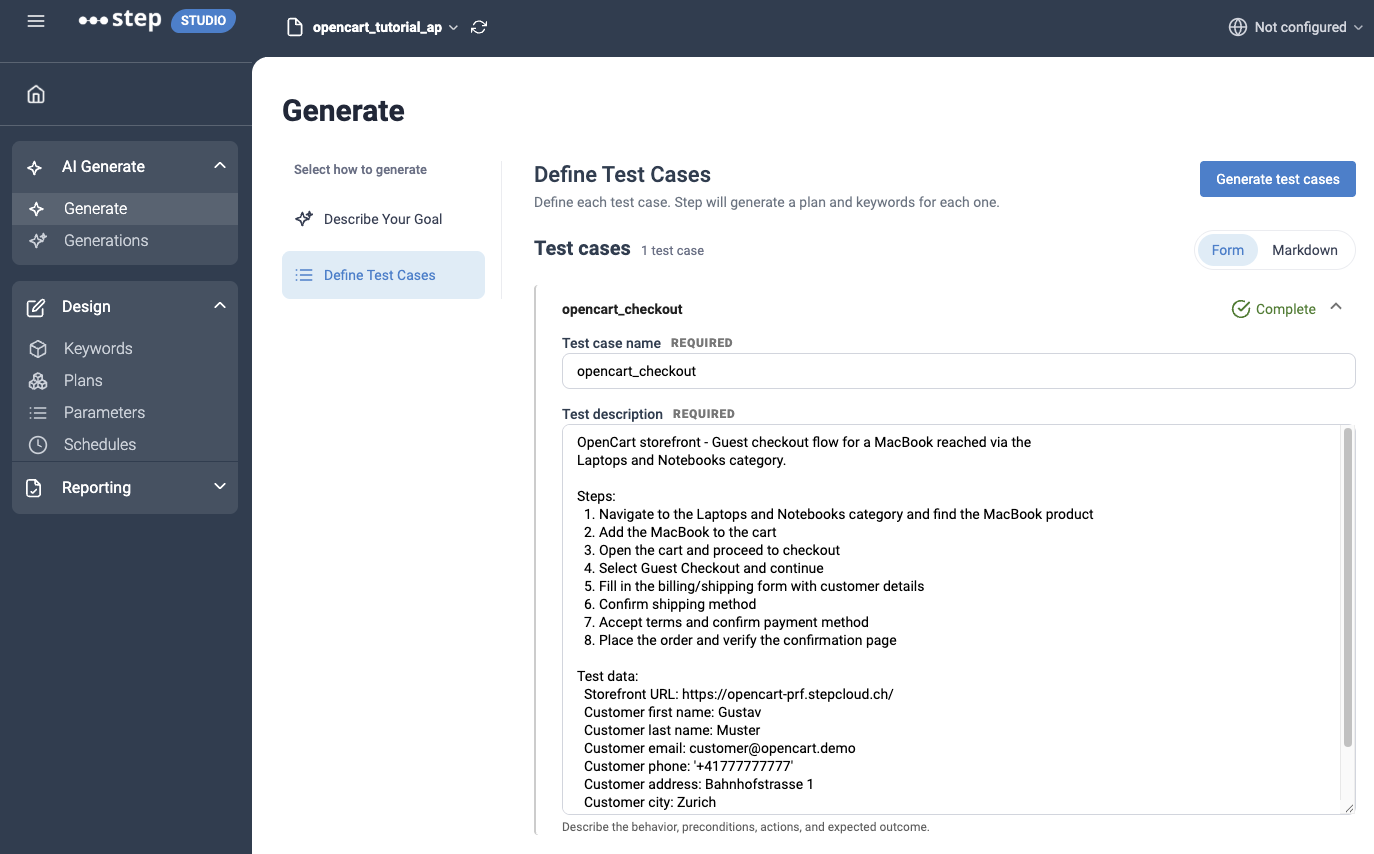
- Go to AI Generate → Generate and select Define test cases.
- Name the test case
opencart_checkoutand paste the block above into Test description. - Click Generate test cases.
A specification already written down can go in whole under Paste a specification instead. Either way Studio generates into the package you have open, so there is no output location to set.
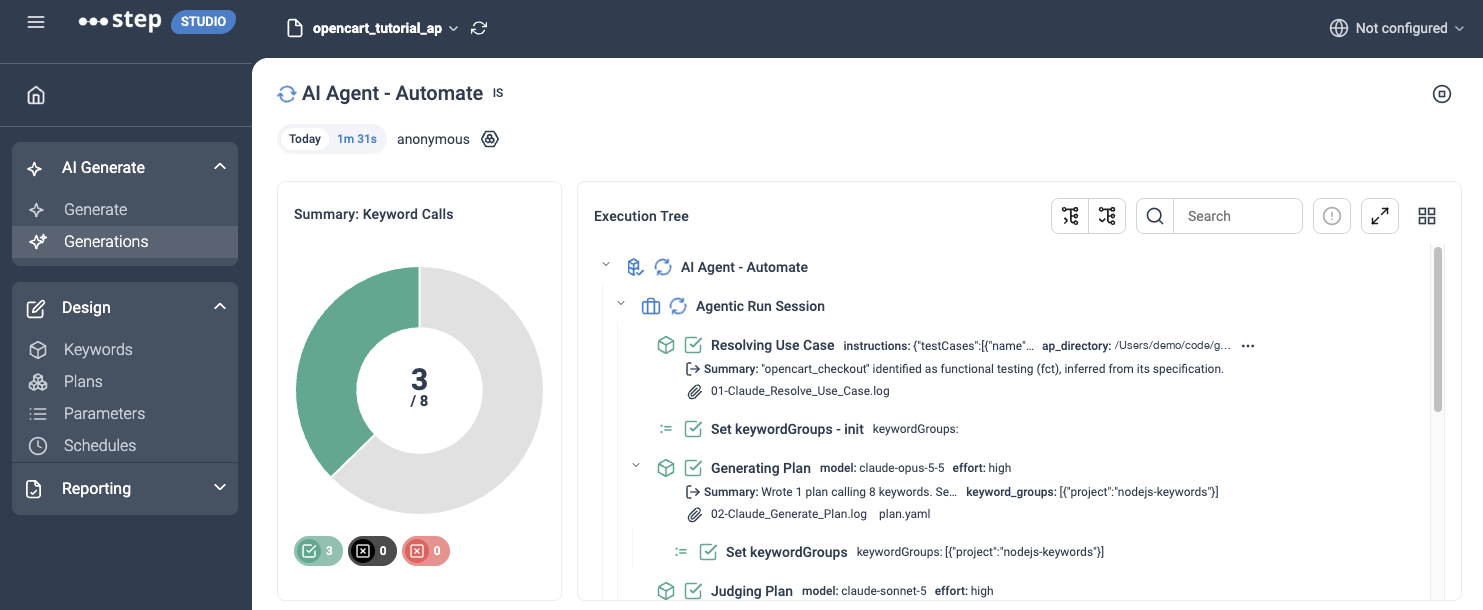
The run takes several minutes. The agent drives the storefront end to end before writing any code, implements the journey, executes it, and repairs what fails before reporting success. You can follow the agentic workflow execution phase by phase under Generations while it works:
The agent does not make assumptions or pause to ask for clarification. Instead, it checks for potential issues at two stages.
First, before calling the AI model, it checks for duplicate test case names and ambiguous requests that could describe either a test or an RPA workflow. If it finds an issue, it stops and explains what needs to change.
Next, while designing the automation, it checks the requested steps against the running application. If a required action is not supported, the agent identifies as many blockers as possible, explains what was expected versus what the application actually allows, and stops before generating any code.
Nothing about the run is hidden from Studio. Each phase keeps the log behind it, so you can read how the plan was designed and the test cases derived from your specification, and how each keyword was implemented.
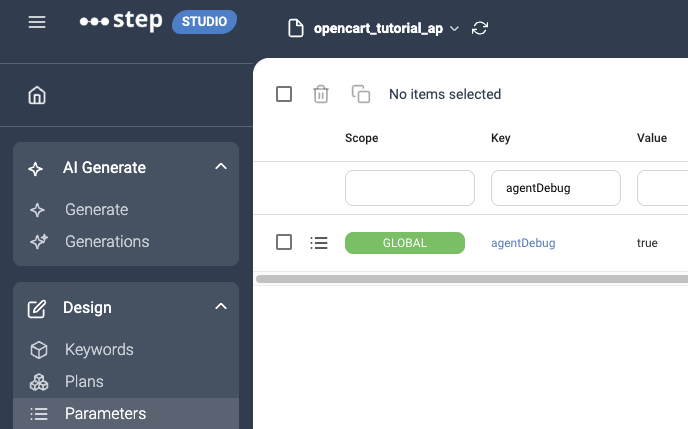
A full debug mode adds more on demand, including the browser traces. Under Parameters, add agentDebug with the value true and a Global scope, before you generate:
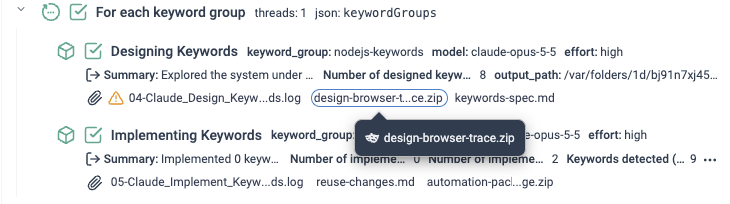
The run then attaches the trace to the Designing Keywords phase, as design-browser-trace.zip, beside that phase’s log and the keywords specification it produced:
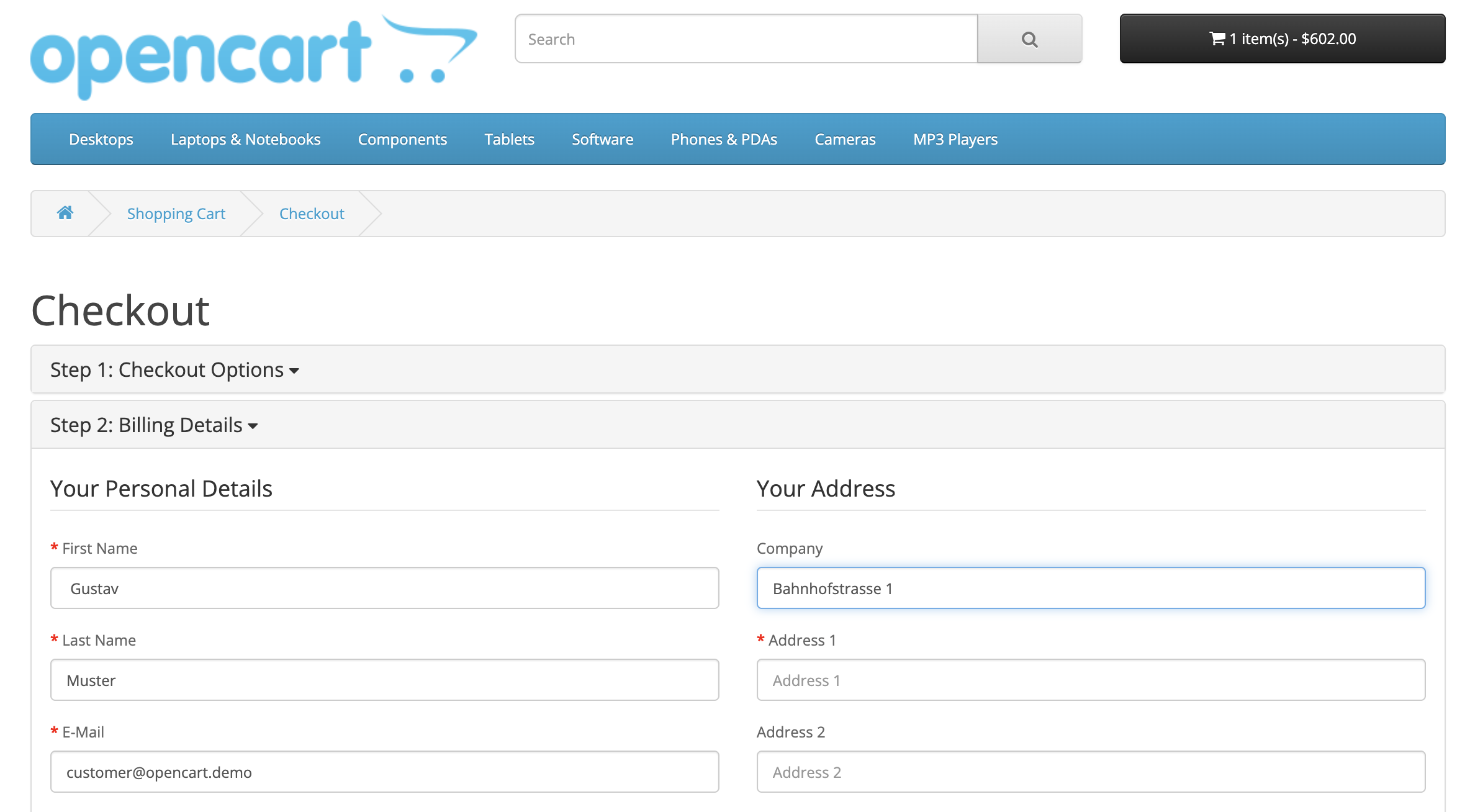
The trace captures the storefront itself, so you can replay what the agent saw while it explored:
The run closes with a report. This is an extract:
## ✅ PASSED
✅ Run PASSED — 8 keyword(s) implemented, $1.7490, 6.42 min
## What this run produced
| Test case | useCase | mode | Verified by |
|-------------------|---------|--------|--------------------------------------|
| opencart_checkout | fct | create | local execution (1/1 plans passing) |
**Plan fidelity:** 1 covered · 0 partial · 0 missing
The verdict PASSED or FAILED is the principal information. Step executes the generated keywords against the storefront exactly as it would on a server, and a keyword whose check is not met fails its plan, which fails the run. The verdict comes from the execution of the keywords, not from the agent’s opinion of its own work.
Additional metrics are reported for information only, like plan fidelity, where a second model compares the plan the agent produced against the specification you wrote and marks each test case covered, partial or missing. It never fails the run: it reads the plan rather than running it, and a plan the application cannot satisfy was already caught earlier, while the keywords were designed. The number of keywords implemented, the cost and the execution time are reported too, and all three vary with the scenario, the environment and the model in use.
Phase 3: Read what came back
The result is an ordinary Step Automation Package: a plan, the keywords implementing it, and the evidence behind both.
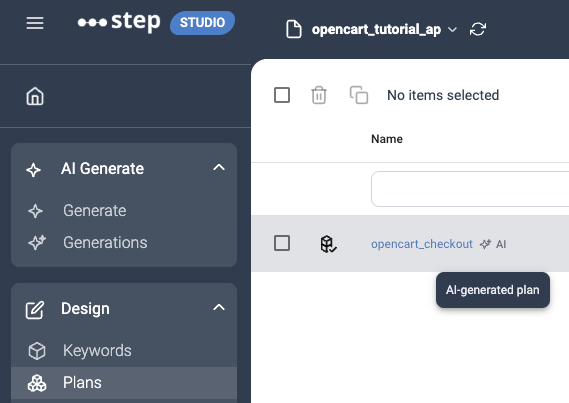
Refresh the package in Studio once the run finishes: the open package does not pick the result up on its own. The generated plan then appears under Plans, listed under the name you gave the test case and marked as AI-generated, so automation the agent wrote stays recognisable at a glance:
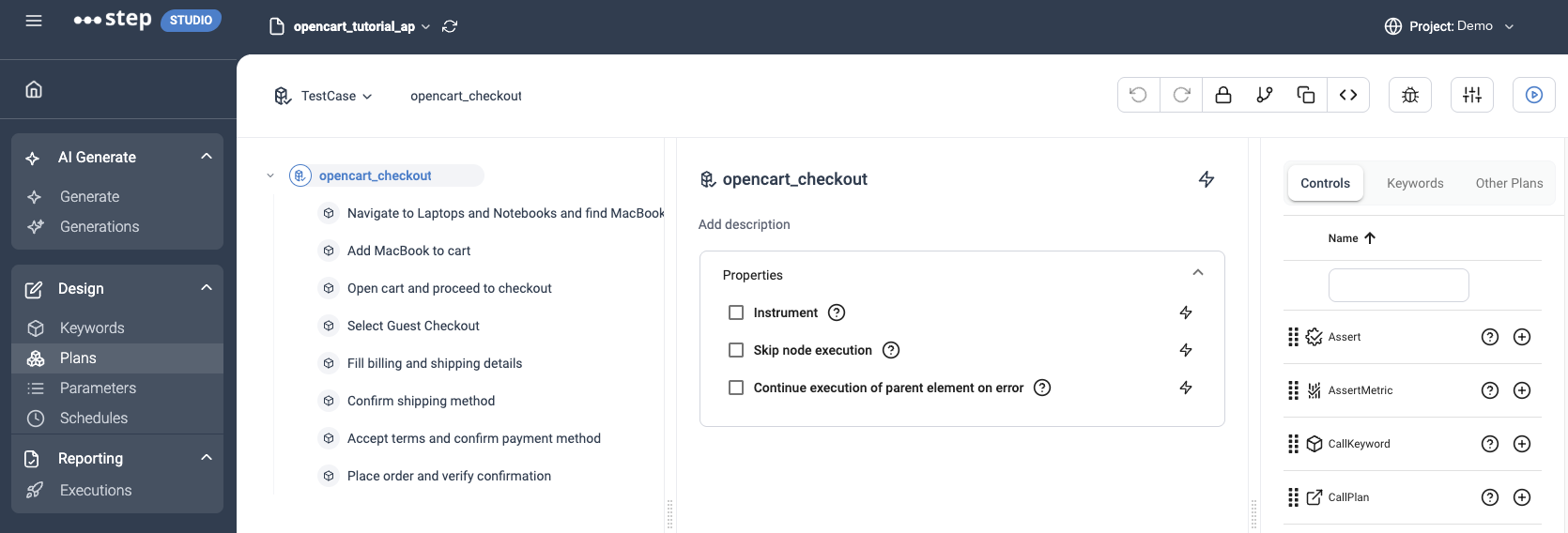
Open it and the full list of keywords is there, one keyword per step:
The same plan can be read as YAML, with Show plan YAML’s source in the editor toolbar:
---
version: "1.3.0"
name: "opencart_checkout"
metadata:
origin: "ai"
ai:
executionId: "6ad73afb4c894d61e6912c58"
testCase: "opencart_checkout"
root:
testCase:
nodeName: "opencart_checkout"
children:
- callKeyword:
nodeName: "Navigate to Laptops and Notebooks and find MacBook"
keyword: "findProductInCategory"
- callKeyword:
nodeName: "Add MacBook to cart"
keyword: "addProductToCart"
- callKeyword:
nodeName: "Open cart and proceed to checkout"
keyword: "openCartAndProceedToCheckout"
- callKeyword:
nodeName: "Select Guest Checkout"
keyword: "selectGuestCheckout"
- callKeyword:
nodeName: "Fill billing and shipping details"
keyword: "fillCustomerDetails"
- callKeyword:
nodeName: "Confirm shipping method"
keyword: "confirmShippingMethod"
- callKeyword:
nodeName: "Accept terms and confirm payment method"
keyword: "confirmPaymentMethod"
- callKeyword:
nodeName: "Place order and verify confirmation"
keyword: "placeOrderAndVerifyConfirmation"
The steps read as the journey you specified, and the plan is stamped origin: ai with the execution that produced it, so AI-generated automation stays identifiable later.
The working directory you gave to Step Studio is on your machine, and everything the run produced is written under it. The package name in the header expands to show where it sits:

Phase 4: What the agent worked out on its own
Most of that time went on questions nobody wrote down. The agent drove the storefront before writing any code, and a detail the specification left open is its to resolve: a selector that is wrong or ambiguous, a label that reads differently on screen, a screen that needs a wait. It keeps exploring until it has an answer that holds, and records the choice it made.
Examples from this run:
- The specification’s words are not the application’s. It says “Laptops and Notebooks”; the store’s menu says “Laptops & Notebooks”. The automation uses the menu label, and the difference is recorded rather than silently absorbed.
- The application behaves in a way nobody would think to specify. The region dropdown is re-loaded over AJAX when the country changes, so the automation waits for the new options rather than selecting into a stale list.
None of this was in the test specification. These are the details the agent resolved by exploring the application, rather than asking you to specify them up front, and it wrote each one down in keywords-spec.md, attached to the Designing Keywords phase, so you can review the reasoning rather than trusting it.
Phase 5: Run it again, locally or centrally
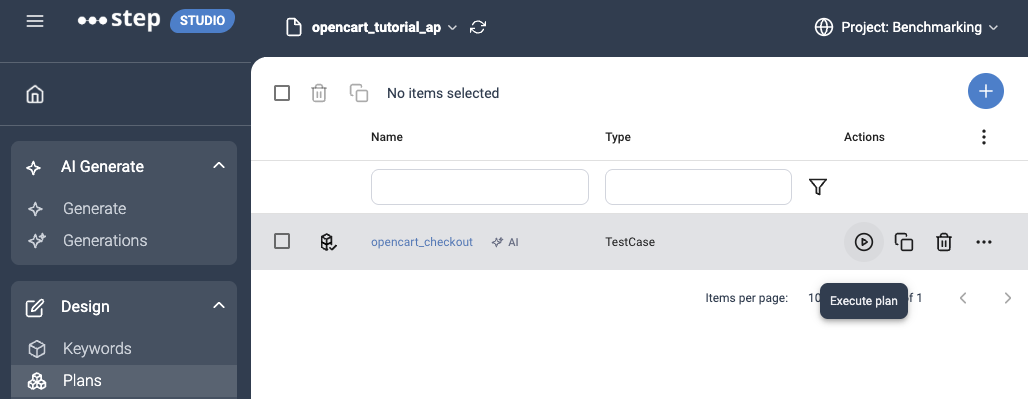
The agent already executed the plan while it built it, which is what the report’s local execution (1/1 plans passing) records. But from here on, the package runs without any dependency on AI. You can go to the Plans list and click Execute plan on the row to run it again.
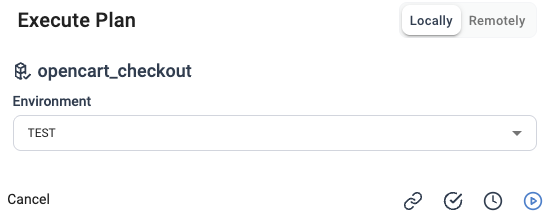
The dialog asks where to run it.
Locally runs it on your own machine, with nothing to set up:
Centrally runs it on a Step instance instead, which answers what a local run cannot: whether it holds up on a vanilla and controlled environment, whether it is stable across multiple runs, and whether the team can share and analyse the results centrally.
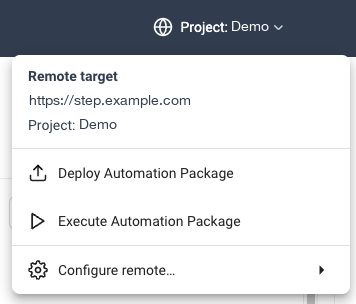
The central execution requires some set up. Point Studio at the instance with Configure remote, from the Project button in the header:
You can now pick Remotely in the toggle, and the dialog names the instance and project it will use:
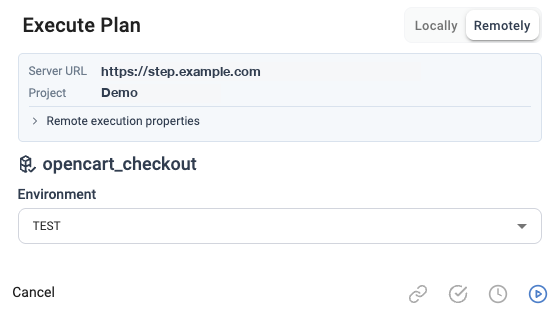
You can press the execute button and track the execution on the Step platform:
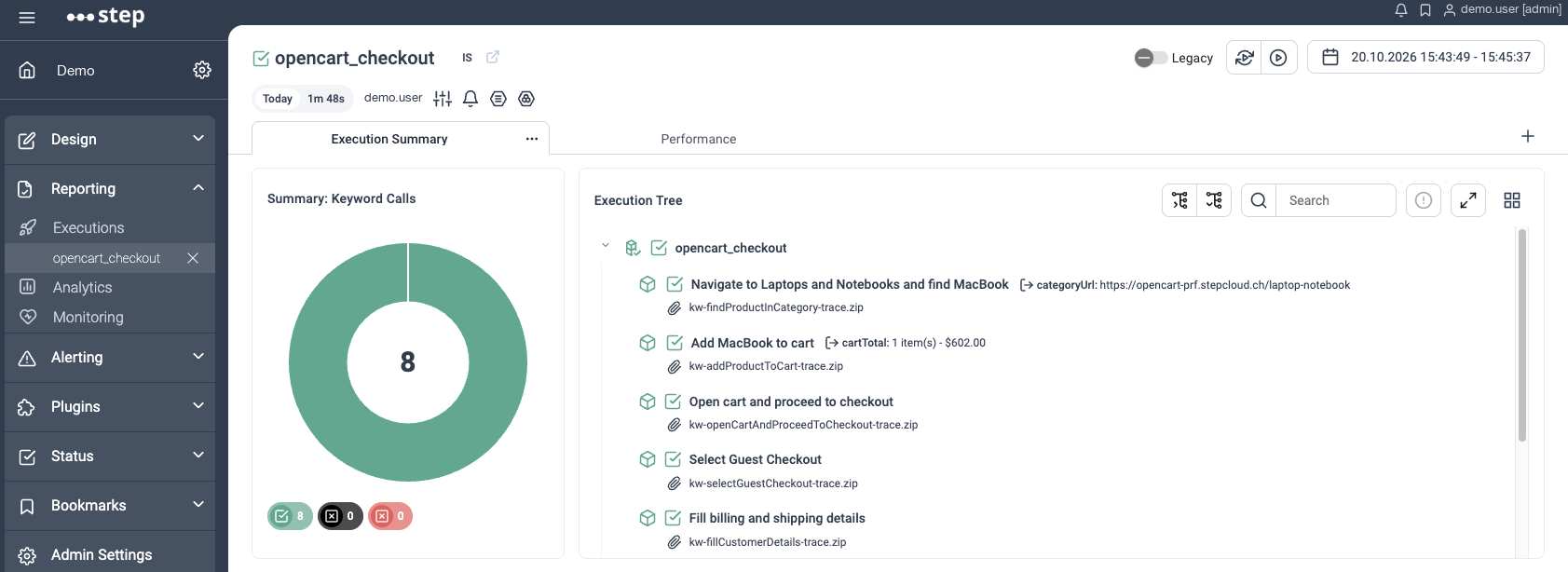
Every run is the same deterministic automation, executed by Step with no AI involved, and so at no model cost. Generating the package called the models, once; running it never does.
Phase 6: Put the package to work
The same test case serves three purposes, and you will probably want more than one:
- On change, to catch regressions. A CI/CD job runs the package straight from your repository, in an isolated execution that leaves nothing behind, so nothing has to be deployed first. The Agentic test automation from the command line tutorial sets that up.
- On demand, when you need the answer. Deploy the package with Deploy Automation Package, seen earlier, then find the plan under Plans and run it from there, or add it to a campaign: to validate a release candidate, or to reproduce a reported problem. No pipeline and no developer involved.
- On a schedule, once the application is live. Schedules turn the deployed plan into synthetic monitoring: open the view, create a schedule, select
opencart_checkoutand choose when it runs. A wizard builds the CRON expression, for a check every morning at 6 AM say, and the schedule only runs while it is active. Subscribe to it and a failing run reaches you rather than waiting to be noticed.
Where it goes from here
The package is deployed to a central Step instance, where it belongs to the whole team rather than to the machine it was generated on. Every run is a Step execution, with its traces attached and its failures reported like any other automation, and none of it depends on AI any more.
But the underlying automation package remains an artefact that the development team can take further: it travels the way code does, so they can inspect it, reuse its keywords and extend your test case rather than starting a second package.
👉 Agentic test automation from the command line shows how a Developer can reuse such an automation package, or create one like it, using their own tooling and staying in their IDE.
This article demonstrates how to connect Grafana to data generated by Step.
This article demonstrates how to set up distributed system monitoring using Keyword executions, and analyze the results as measurements.
This tutorial demonstrates how to automate interaction with Microsoft Office applications using the Office Interop Assembly.

This article provides documentation for how to integrate JUnit tests into Step.
This tutorial demonstrates how Step can be used to monitor services, availability and performance metrics.
This tutorial demonstrates how to utilize the AutoIt C# binding to automate interactions with Windows applications.
This article demonstrates the automation of mobile applications on Android using the Appium framework.
This article defines three Keywords which will be used in browser-based automation scenarios, using Step and Selenium, as general drivers.
Write native Step Keywords with Playwright and TypeScript, unit-test them locally, then build and run them on a Step cluster — reusing one Keyword library for both a functional test and a load test.

This tutorial shows you how to efficiently set up a browser-based load test using existing Cypress tests in the Step automation platform.
In this short tutorial, we show how to quickly implement a simple browser-based load test based on Cypress scripts in Step.

This tutorial shows you how to set up a browser-based load test using existing Playwright tests in the Step UI.
This article explains Keywords in Step and demonstrates how to create simple ones.
This tutorial demonstrates the design, execution, and analysis of functional tests using the web interface of Step.
This tutorial will demonstrate how to use Step and Selenium to automate various browser tasks.
This tutorial demonstrates how to use Step and Cypress to automate various browser tasks.
This tutorial demonstrates how Selenium automation tests can be turned into full synthetic monitoring using Step.
In this tutorial, you'll learn how to reuse existing Cypress tests to quickly set up and run a browser-based load test using the automation as code approach.

In this tutorial, you'll learn how to reuse existing tests written with Serenity BDD and Cucumber for load testing.
This tutorial demonstrates how Cypress automation tests can be turned into full synthetic monitoring using the automation as code approach.
In this tutorial, you'll learn how to reuse existing Cypress tests to quickly set up and run a browser-based load test using the Step UI.
This tutorial demonstrates how to leverage existing Selenium tests to set up and execute browser-based load tests, following a full code-based approach.
This tutorial demonstrates how to set up a browser-based load test in the Step UI using existing Selenium tests.
This tutorial demonstrates how Playwright automation tests can be turned into full synthetic monitoring using Step.
This tutorial demonstrates how Cypress automation tests can be turned into full synthetic monitoring using the Step UI.
This tutorial will demonstrate how to use Step and Playwright to automate various browser tasks.

This tutorial shows how to distribute JMeter tests across multiple nodes.
In this tutorial, you'll learn how to reuse existing Playwright tests written in Java to quickly set up and run a browser-based load test using the automation as code approach.
This tutorial demonstrates how Playwright tests can be reused for synthetic monitoring of a productive environment in a DevOps workflow
This tutorial shows how to distribute Grafana K6 tests across multiple nodes.
This tutorial demonstrates how Playwright tests can be reused for synthetic monitoring of a productive environment in a DevOps workflow
In this tutorial you'll learn how to quickly set up a protocol-based load test with okhttp
Learn how to set up continuous end-to-end testing across several applications based on Playwright tests in your DevOps pipeline using Step
Learn how to quickly set up continuous browser-based load testing using Playwright tests in your DevOps pipeline
End-to-end walkthrough: author a test, run it, and analyse the results using plain English prompts in Claude via the Step MCP Server.
Delegate the whole testing workflow to Step AI Agent from the command line: write the specification, drive the agent with the Step CLI, and gate your CI/CD pipeline on a validated Automation Package.
Want to hear our latest updates about automation?
Don't miss out on our regular blog posts - Subscribe now!