Keyword Development
Keywords are the fundamental building blocks of Plans. They encapsulate the automation logic and can represent fully automated flows or finer-grained actions, such as single user interactions or service calls.
This page is the entry point for developing your own custom keywords: it walks you through your first keyword from project setup to execution in Step, and highlights the concepts and best practices to consider along the way. Refer to the keyword API page for the technical documentation.
A Keyword’s automation logic can come from three sources: a ready-made prebuilt library, your own custom code (this page), or an external asset that already exists outside Step. See Keyword sources for the full picture, including the important distinction between a native plugin integration and generic command execution, before deciding to write custom code.
What is a custom keyword
A custom keyword in Step is a user-defined block of automation logic implemented in code. Unlike prebuilt-library or external-asset keywords, a custom keyword is one you write yourself in the language of your choice (Java, C#, JavaScript, or TypeScript). You can use any driver or library compatible with that language, including Playwright, Selenium, Appium, OkHttp, and gRPC.
The Keyword API provides the tools needed to create custom keywords in each of these languages, executed respectively on the Java, .NET, and Node.js agents (JavaScript and TypeScript both run on the Node.js agent). It provides a clear interface to:
- Define and configure Keywords:
- Use annotations and class extensions to transform standard programming functions into Step-compatible keywords.
- Access Keyword inputs, session objects, and report data (keyword outputs, performance measurements, attachments)
- Implement hooks related to keyword executions (interceptors, error management)
Custom keywords empower developers to integrate any tool, framework, or custom logic into Step workflows, ensuring flexibility and scalability in automation.
Getting started
This section walks you through the full journey from an empty project to a keyword running in Step: set up a project, write a first keyword, run and debug it locally, deploy it, and call it from a plan.
Prerequisites
To develop and run custom keywords you need:
- A running Step cluster, including an agent for your language: the easiest way to get a cluster is Step SaaS; to host your own instance, follow the on-prem quick setup. Since your keyword code is executed by an agent, the cluster must include an agent matching your language: Java agent, .NET agent, or Node.js agent.
- A development environment for your language: a JDK and Maven for Java, the .NET SDK for C#, or Node.js and npm for JavaScript/TypeScript.
Set up your project
The quickest ways to get a working project skeleton are:
- AI-assisted scaffolding: the Step MCP Server’s
step_initialize_projecttool can scaffold a custom keyword project for you (keywordSource: custom-code). - Start from a sample: clone the step-samples repository — its README indexes all samples by use case, framework, and language.
To set up a project manually instead:
Create a standard Maven project and add the Keyword API dependency:
<dependency>
    <groupId>ch.exense.step</groupId>
    <artifactId>step-api-keyword</artifactId>
    <version>1.6.0</version>
</dependency>
The Java Keyword API is versioned independently of Step; check the Keyword API release notes for the latest version and its compatibility with Step versions.
Keywords are deployed to Step as a single JAR containing your code and its dependencies (uber-jar). Configure the Maven Shade plugin in your build as shown in the demo project.
Create a class library project and add the Step API NuGet packages, which contain the core API and a local runner for unit testing:
<PackageReference Include="StepApiFunction" Version="1.6.0" />
<PackageReference Include="StepApiKeyword" Version="1.6.0" />
<PackageReference Include="StepApiReporting" Version="1.6.0" />
The NuGet packages follow the same versioning as the Java Keyword API, which is versioned independently of Step; check the Keyword API release notes for the latest version and its compatibility with Step versions.
Refer to the C# Keywords page for the supported framework versions and further details on the project setup.
Create an npm project and add the Node.js agent as a development dependency:
npm install --save-dev step-node-agentThe step-node-agent package follows the Step version numbering (e.g. 3.30.0); use the version matching your Step cluster.
By convention, keywords are exported from CommonJS .js files placed in the project’s keywords/ directory (configurable via the step.keywords field of package.json). See JavaScript Keywords for how the Node.js agent installs the project’s dependencies and executes it.
For TypeScript, keep your sources in src/ and compile them to CommonJS into the keywords/ directory as part of your build — see TypeScript Keywords for the project setup.
Write your first keyword
A keyword is a plain function: it reads its inputs, performs the automation logic, and reports results to its output. The following minimal keyword reads a name input and returns a greeting output:
public class MyKeywords extends AbstractKeyword {
    @Keyword
    public void Hello() {
        String name = input.getString("name", "world");
        output.add("greeting", "Hello " + name + "!");
    }
}
namespace STEP {
public class MyKeywords : AbstractKeyword {
[Keyword]
public void Hello() {
string name = (string) input["name"];
output.Add("greeting", "Hello " + name + "!");
}
}
}In keywords/keywords.js:
exports.Hello = async (input, output) => {
  const name = input['name'] || 'world'
  output.add('greeting', `Hello ${name}!`)
}
The Keyword API page documents everything available inside a keyword: inputs and schemas, outputs, attachments, performance measurements, properties, sessions, and hooks.
Run and debug it locally
Keywords are regular code: you can execute and debug them directly in your IDE with a unit test, without deploying anything to Step. Each language provides a local runner that simulates the keyword execution like Step does:
public class MyKeywordsTest {
    @Test
    public void testHello() throws Exception {
        ExecutionContext ctx = KeywordRunner.getExecutionContext(MyKeywords.class);
        Output<JsonObject> output = ctx.run("Hello", "{\"name\":\"Step\"}");
        assertEquals("Hello Step!", output.getPayload().getString("greeting"));
    }
}
See this JUnit test example for a complete setup.
[TestMethod]
public void TestHello()
{
    ExecutionContext runner = KeywordRunner.GetExecutionContext(typeof(MyKeywords));
    Output output = runner.Run("Hello", @"{name:'Step'}");
    Assert.IsNull(output.error);
    Assert.AreEqual("Hello Step!", (string) output.payload["greeting"]);
    runner.Close();
}
More details on unit testing with the KeywordRunner can be found on the C# Keywords page.
const runner = require('step-node-agent/api/runner/runner')()

try {
  const output = await runner.run('Hello', { name: 'Step' })
  console.log(output.payload) // { greeting: 'Hello Step!' }
} finally {
  runner.close() // releases the session
}
Deploy it to Step
Once your keyword works locally, deploy it to your Step cluster in one of two ways:
- Automation Packages (recommended): bundle your keywords — along with plans, schedules, and parameters — in a single versioned package that Step discovers automatically. See the Automation Packages overview.
- Manual registration: register the keyword through the Step UI by uploading your JAR, DLL, or Node.js project and filling in its configuration. See Deployment of Keywords.
An Automation Package is described by an automation-package.yaml descriptor placed at the root of the package. Below is a minimal package for the Hello keyword above, including a plan calling it:
Java keywords annotated with @Keyword are discovered automatically and do not need to be declared in the descriptor. In a Maven project, place the descriptor under src/main/resources/ so it ends up at the root of the JAR:
version: 1.0.0
name: my-first-automation-package
plans:
  - name: "Hello plan"
    root:
      testCase:
        children:
          - callKeyword:
              keyword: Hello
              inputs:
                - name: "Step"
The Automation Package is the JAR itself, containing your compiled keywords, their dependencies, and the descriptor. Build and deploy it with the Automation Package Maven plugin:
mvn package step:deploy-automation-package "-Dstep.url=https://your.step.server/" "-Dstep.auth-token=your_token"See the Java automation package guide for the full setup, including how to declare further entities directly in the code.
.NET keywords are declared in the descriptor using the DotNet keyword type, referencing the compiled DLL. The package is a ZIP archive (or plain folder when using the Step CLI) containing the descriptor, your DLL, and optionally a ZIP of its library dependencies:
automation-package.yaml
MyKeywords.dll
version: 1.0.0
name: my-first-automation-package
keywords:
  - DotNet:
      name: Hello
      dllFile: MyKeywords.dll
plans:
  - name: "Hello plan"
    root:
      testCase:
        children:
          - callKeyword:
              keyword: Hello
              inputs:
                - name: "Step"
Deploy the ZIP with the Step CLI or upload it through the Step UI. Alternatively, a single DLL can be deployed directly as an Automation Package: its keywords are discovered automatically via the Keyword annotation, without a descriptor.
JavaScript/TypeScript keywords are declared in the descriptor using the Node keyword type, referencing the Node.js project folder containing the package.json and the keywords/ directory. Every module your keywords require has to be declared in that package.json: the agent installs the project’s dependencies before running the keyword (see Execution on the Node.js agent), and nothing else is available to it. Include the package-lock.json to get reproducible installations. The package is a ZIP archive (or plain folder when using the Step CLI):
automation-package.yaml
nodejs-keywords/
├── package.json
└── keywords/
    └── keywords.js
version: 1.0.0
name: my-first-automation-package
keywords:
  - Node:
      name: Hello
      jsfile: nodejs-keywords/
plans:
  - name: "Hello plan"
    root:
      testCase:
        children:
          - callKeyword:
              keyword: Hello
              inputs:
                - name: "Step"
Deploy the package with the Step CLI or upload it through the Step UI.
Call it from a plan
Your keyword is now available in Step’s keyword list and can be used in Plans. Create a plan in the visual plan editor, add a call to your keyword, pass its inputs, and execute the plan. The outputs, errors, measurements, and attachments reported by your keyword appear in the execution report.
See Keywords in Plans for details on calling keywords, passing inputs, and keyword routing.
Next steps
- Read the sections below to understand the keyword lifecycle and statefulness, and to follow the best practices
- Refer to the Keyword API for the full technical reference
- Follow our tutorials covering common automation frameworks and use cases end to end
Keyword Lifecycle
Key Points:
- The Keyword execution is stateless, in its simplest form it consists of instantiating and invoking the Keyword’s function, the keyword exists only for the time of its invocation
- The execution flow can be enriched by implementing the available and optional hooks
- For stateful executions, data can optionally be stored in the attached session.
The lifecycle of a keyword execution involves the following stages:
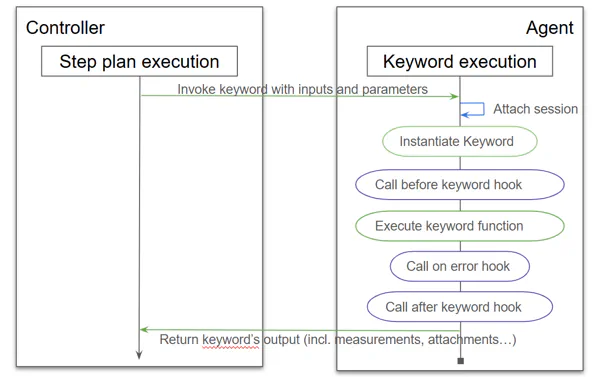
- Initialization:
- The keyword class is instantiated when the keyword is invoked, inputs and properties are set
- The session context is attached to the Keyword’s instance
- Execution flow:
- beforeKeyword Hook
optional:- Called before the keyword’s main function is executed
- Use this to perform pre-execution setups (e.g., establishing connections or validating inputs)
- Keyword Function:
- The annotated method containing the logic for the keyword is executed
- onError Hook
optional:- Triggered if an error occurs during the execution of the keyword
- Useful for error handling or rollback actions
- afterKeyword Hook
optional:- Always called after the keyword function completes, regardless of success or failure
- Ideal for cleanup operations
- beforeKeyword Hook
- Report data: including keyword outputs, errors, performance measurements, attachments
- Instance Release:
- After execution, the keyword’s class instantiated in the initialization phase is released. As a result, keywords do not retain any data between executions
When to use hooks
The simplest implementation of a keyword is to define only the keyword’s function. This allows you to include your automation code, resource cleanup, and error handling all within a single function.
Hooks, as described in the keyword lifecycle, can be used for more advanced scenarios. For instance, you might want to attach a screenshot in case of an error by using the onError hook.
Stateless vs. Stateful Keywords
A keyword execution is by definition stateless: a new instance is created for each invocation and released right afterwards. However, the Step platform and its keyword API enable stateful executions of a group of keywords by sharing a session.
Key Points:
- Stateful keywords can store and retrieve data across executions using the session property
- The session is managed by the platform, allowing shared state across multiple keywords within the same workflow
- The session is only available for keyword calls which are grouped in a workflow using the Session control
| Feature | Stateless Keywords | Stateful Keywords |
|---|---|---|
| Instance Lifecycle | New instance per execution. | Data shared via session property. |
| Data Persistence | No persistence between executions. | Data persists across executions in the session. |
| Use Case | Ideal for idempotent, isolated operations. | Useful for workflows requiring shared state. |
The session lifecycle is:
- The Session is initialized when the execution of the group starts
- The Session is passed to each keyword invoked inside this group
- The session is closed right after the group of keywords is executed. All objects stored in the session by the keywords will be closed if and only if they implement the “Closeable” or “AutoCloseable” interfaces
When to Use Stateful Keywords
- When a keyword needs to retain data for use in subsequent executions within the same workflow
- Example: Storing authentication tokens, counters, or temporary results
When to Use Stateless Keywords
- For lightweight, independent operations
- Example: Logging, stateless API calls, or simple data transformations
Best Practices
General Guidelines
- Minimize Dependencies:
- Avoid unnecessary dependencies to keep keywords lightweight
- Use Meaningful Names:
- Clearly name keywords to reflect their functionality
Keywords modularity
Whether your keywords encapsulates fully automated flows or finer-grained actions will impact the modularity, reusability but also the development effort of your keywords:
- Keywords performing a single, well-defined task increase its modularity and will enable to reuse the same automation code seamlessly for many different workflows and scenarios. The downside is higher development effort especially for re-using existing automation code
- On the other side larger keywords, wrapping entire workflow for example, will lose the modularity and reusability, but will require lower development effort
Resource Management
Resources include any object created by your code (or 3rd party libraries) requiring to be closed and cleanup explicitly including resources created directly on the filesystem. Commons examples are
- Closing browsers and web driver
- Releasing database connections
- Releasing file handles
- Generating or downloading documents on the filesystem
Clean Up resources approaches and best practices:
- Stateless keywords without hooks
- Ensure resources are closed within the keyword’s function
- Use language specific best practices such as try-with-resource construct when it applies
- Stateless keywords with custom hooks
- Use the
afterKeywordhook to release resources
- Use the
- Stateful keywords
- For any data stored in a session that requires explicit cleanup, ensure it implements AutoCloseable or Closeable. As described in the session lifecycle, the session is closed immediately after the group of keywords is executed, automatically closing all stored objects that support these interfaces.
Error Handling
Handle Errors Gracefully:
- Implement error handling in your code following language specific best practices
- Properly categorize errors with their message and type (business or technical error)
- Any uncaught exception will be reported as a technical error. It is advised to catch them and categorize them as described above. This can be done directly in the keyword’s function or by using the
onErrorhook.
Session Usage
- Use session properties sparingly to avoid memory overhead
- Objects stored in session must implement Closeable or AutoCloseable if they require to be cleaned-up once the session is released
FAQ
-
Can I use the same keyword instance for multiple executions?
No, keyword instances are stateless by default. Use the session property for sharing data across executions.
-
What happens if error handling is not implemented?
The platform will report back all exception as a technical error reusing the exception message and attaching its stack trace.
-
What happens if clean-up is not implemented?
The platform will not perform automatic resource cleanup for resources created by the keyword code or by the used 3rd party libraries. Always implement resource management properly if your keyword creates temporary resources.
-
How can I debug my keywords?
Keywords can be executed and debugged directly in your IDE with unit tests, see Run and debug it locally. For debugging executions on the platform you may use logging, the logs will be available in the logs of the agent that executed the keyword.
Additional resources
In addition to the above documentation:
- Tutorials:
- Browse our tutorials covering different automation frameworks and use cases
- Examples:
- step-samples repository — see its README for a full index of samples by use case, framework, and language
- Java examples
- C# examples
- JavaScript/TypeScript examples
- AI-assisted scaffolding:
- The Step MCP Server’s
step_initialize_projecttool can scaffold a custom keyword project for you (keywordSource: custom-code), ready to fill in with the logic described on this page.
- The Step MCP Server’s
- Main classes in javadocs related to Keyword: