C# Keywords
C# keywords use the Keyword API and are executed on the .NET agent, which is available with the Enterprise Edition of Step. This page describes the C#-specific project setup, local testing, and deployment.
If you are new to keyword development, read the Keyword Development page first.
Project setup
Create a new Console Application project in Visual Studio. The .NET agent requires .NET 8, so your keyword project must target the net8.0 framework.
Then add the Step dependencies to your project. They are published in our enterprise NuGet repository at https://nexus-enterprise.exense.ch/repository/exense-nuget/ (the user/password for accessing these artifacts will be provided to you with your enterprise license):
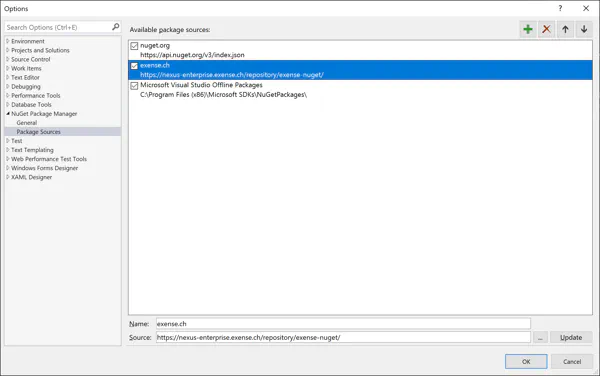
Three packages are available, containing the core API and a local runner for unit testing your keywords:
<PackageReference Include="StepApiFunction" Version="1.6.0" />
<PackageReference Include="StepApiKeyword" Version="1.6.0" />
<PackageReference Include="StepApiReporting" Version="1.6.0" />
The NuGet packages follow the same versioning as the Java Keyword API, which is versioned independently of Step; check the Keyword API release notes for the latest version and its compatibility with Step versions.
Keyword declaration
Keywords are methods annotated with the Keyword attribute in a class extending AbstractKeyword:
using Step.Handlers.NetHandler;

namespace STEP {
  public class MyKeywords : AbstractKeyword {
    [Keyword]
    public void Hello() {
      string name = (string) input["name"];
      output.Add("greeting", "Hello " + name + "!");
    }
  }
}
Refer to the Keyword API page for the full documentation of the keyword inputs, outputs, attachments, measurements, hooks, and sessions — it includes C# samples for each topic.
Local testing
You can unit test your keywords using your preferred unit test framework (e.g. MSTest or NUnit). This will save you time as you will be able to debug your keywords without having to build and deploy your DLL to the controller.
In order to have the most realistic test, use the KeywordRunner object, which simulates the execution of your keywords like Step does:
[TestMethod]
public void TestHello()
{
    ExecutionContext runner = KeywordRunner.GetExecutionContext(typeof(MyKeywords));
    Output output = runner.Run("Hello", "{'name':'Step'}");
    Console.WriteLine(output.payload.ToString());
    runner.Close(); // releases the session and disposes the objects stored in it
}
The returned Output gives access to the keyword’s error, output payload, measures, and attachments. For instance, the content of a text attachment can be printed as follows:
Console.WriteLine(System.Text.Encoding.UTF8.GetString(AttachmentHelper.Base64Decode(output.attachments[0].hexContent)));Complete example
A complete sample project is available in the step-samples repository.
The following .NET class is an example of two keywords using the Selenium driver. It demonstrates the usage of the basic API functions:
- The new keywords are defined using the [Keyword] annotation
- The getDriver and initDriver functions show the usage of a session: session.Put and session.Get allow passing .NET objects across keyword calls during the lifecycle of a virtual user. The WebDriver is typical of the usage of the session, as this driver contains the state of the user and has to be unique per virtual user. Note that a wrapper class implementing ICloseable is used for the driver so that the browser will be properly closed when the session is released
- The gotoGoogle function shows how to pass input values from the test plan to your keywords using input.GetValue
- The testKeywords function shows how to unit test your keywords using the KeywordRunner object
using OpenQA.Selenium;
using OpenQA.Selenium.Chrome;
using Step.Functions.IO;
using Step.Handlers.NetHandler;
using Microsoft.VisualStudio.TestTools.UnitTesting;

namespace STEP
{
    public class DriverWrapper : ICloseable
    {
        private IWebDriver driver;
        public DriverWrapper(IWebDriver driver) => this.driver = driver;
        public void Close() => this.driver.Quit();
        public IWebDriver getDriver() => this.driver;
    }

    public class TestSeleniumNet : AbstractKeyword
    {
        protected IWebDriver getDriver()
        {
            return ((DriverWrapper)session.Get("chromedriver")).getDriver();
        }
        [Keyword]
        public void initDriver()
        {
            IWebDriver driver = new ChromeDriver();
            session.Put("chromedriver", new DriverWrapper(driver));
        }
        [Keyword]
        public void gotoGoogle()
        {
            IWebDriver driver = getDriver();
            driver.Navigate().GoToUrl("https://google.ch/search?q=" + input.GetValue("search"));
        }
    }

    [TestClass]
    public class KeywordsTests
    {
        [TestMethod]
        public void testKeywords()
        {
            ExecutionContext runner = KeywordRunner.GetExecutionContext(typeof(TestSeleniumNet));
            runner.Run("initDriver");
            runner.Run("gotoGoogle", "{'search':'exense'}");
            runner.Close();
        }
    }
}
Deployment
Once your keywords work locally, deploy them to your Step cluster in one of two ways:
- Automation Packages (recommended): a single DLL can be deployed directly as an Automation Package — its keywords are discovered automatically via the
Keywordannotation. Alternatively, .NET keywords can be declared in a ZIP-based Automation Package using theDotNetkeyword type of the YAML descriptor. Runtime dependencies can be bundled as Automation Package libraries. - Manual registration: register the keyword through the Step UI by uploading your DLL and filling in its configuration. The additional DLLs needed by your keyword can be provided in the dependencies libraries field, either as a single DLL file or as a zip file containing multiple DLLs (the .pdb file of your keyword DLL can be added there too). See Deployment of Keywords for details.